
Excel Add-In with More Than 100 Advanced Tools and Functions
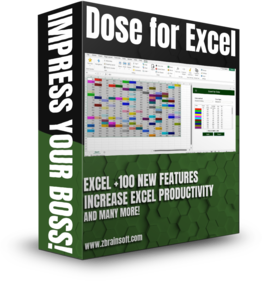
If you’re tired of removing duplicate rows, comparing sheets, or grinding through repetitive work in Excel, Dose for Excel turns those chores into a few clicks. It adds a DOSE tab to the Excel ribbon that packs more than 100 advanced tools and functions into a few clicks. Merge cells without losing data, generate barcodes and QR codes, clean messy data, count cells by color, compare two sheets, export every sheet to its own file, batch-insert check boxes, and back up a workbook before you change it. Everything below is grouped exactly the way it appears in the ribbon, so you can find a tool the same way you’d reach for it in Excel.
See Dose for Excel in Action
Works with Excel 2010 and newer, on Windows 7 SP1 and later. Both 32-bit and 64-bit Excel.
Every Dose for Excel Tool, Grouped by Ribbon Group

View Group — Navigate Workbooks and Read Wide Sheets
- Navigation : If you have a lot of Excel workbooks open, it can be tough to navigate between them. This application will let you browse through your workbooks quickly and elegantly, as well as to a specific worksheet inside the workbook.
- Work Area : Convert your Excel workbook to Full Screen mode for easier reading; the ribbon, status bar, and formula bar will be minimized. Return the workbook to the first show state by showing them again.
- Reading Layout : If your worksheet contains a large amount of data with many rows and columns, this tool will make it easier to view your data by highlighting the column and row of the selected cell.
- Row to Column : View a row with an excessive number of columns in a new window with two columns, one for headers and the other for row data.
Editing Group — Select, Insert, Delete and Transform Cell Data
- Select Tools
- Select Used Range : This tool allows you to quickly choose cells. This application will select all used ranges regardless if there are blank cells, rows, or columns.
- Extend selection to the last used row : Even if there are empty cells or rows, you can easily extend the selection to the last utilized row.
- Extend selection to the last used column : Even if there are empty cells or columns, you can easily extend the selection to the last utilized column.
- Select Merged Cells : Select a range of cells and then click “Select Merged Cells” to select all merged cells.
- Select Interval Rows / Columns : You can quickly choose individual rows or columns at a predetermined interval. You can, for example, choose 5 rows every 2 rows.
- Select Specific Cells : Choose cells that fulfill the parameters you’ve chosen. You can then execute various operations on the selected cells, such as delete, format, and so on.
- Insert Tools
- Insert Title Rows : Insert a title row for each interval of rows in a selected range with ease.
- Insert Blank Rows and Columns : With a single click, you can easily insert as many empty rows or columns as you want at any interval.
- Insert Random Data : Numbers, strings, dates, Boolean(TRUE/FALSE, YES/NO), or a custom list can be generated at random. This is typically used when you need to test a formula and need some data in the test cells.
- Date Picker : You may save time by utilizing a date picker to insert dates into cells by selecting dates from a calendar. You can even change the format of the dates.
- Fill Blank Cells : Fill in vacant cells in a range with values from above, below, right, or left. You can also use fixed or linear numbers to fill.
- Batch Insert Check Boxes : With a single click, this utility may place check boxes into the specified cells. If there is text in the cells, the check boxes will be inserted and the cells’ text will be assigned to the check box captions.
- Batch Insert Option Buttons : With a single click, this tool may put choice buttons into the selected cells. If cells include text, the option buttons will be inserted and the cells’ text will be assigned to the captions of the option buttons.
- Insert Barcode : Turn a whole column of SKUs, order IDs, product codes, or URLs into scannable barcode images right inside the sheet. Supports Code128, QR Code, EAN-13, EAN-8, UPC-A and UPC-E, calculates check digits for you, and sizes every barcode to fit its cell.
- Delete Tools
- Color / Delete Rows : Highlight or delete (empty rows, rows of at least one empty cell, rows that contains, identical rows, hidden rows).
- Delete Columns : Remove it (empty columns, columns of at least one empty cell, columns that contains, identical columns, hidden columns).
- Delete Illustrations and Objects : Delete any form of illustration or item from the current sheet, chosen sheets, or all sheets, such as charts, photos, smart arts, lines, auto shapes, text boxes, and so on.
- Batch Delete Check Boxes : If your Excel worksheet contains a lot of check boxes, you can use this program to batch eliminate check boxes from specified cells.
- Batch Delete Option Buttons : If your Excel worksheet contains a lot of check boxes, you can use this tool to bulk eliminate option buttons from selected cells.
- Remove All Macros : With a single click, you can remove all macros, user forms, and VBA modules from your Excel file.
- Text Tools
- Add Text : Insert values before the first character or after the last character, or specify the places to insert, or insert according to letter case, or serialize chosen cells (1-,2-,3,etc…) with a single click.
- Extract Text : This application may extract the elements of a selection that match specific rules to a defined range, and the rules can be created by yourself, such as ‘Dose for (Excel) Add-In to Increase (Productivity)’.
- Trim Spaces : Remove leading spaces (at the start of cells), trailing spaces (at the end of cells), all spaces, and additional spaces from cells (convert more than 2 spaces into one space).
- Remove by Position : You can use this application to remove a certain amount of characters from the left of text, characters from the right of text, or even select a point from which to begin removing characters from any text.
- Remove Characters : With a single click, you can simply remove only characters, only numbers, or all except characters and numbers from chosen cells.
- Change Case : Each cell’s letters should be changed to upper case, lower case, appropriate case, or capitalized.
- Reverse Text Order : Reverse text order in a variety of ways, including all letters, words split by space, words divided by comma, or text separated by any separator you choose.
- Split : With a single click, split first and last names, or split a cell by a separator you choose.
- Merge : With the ability to employ separators, you may quickly merge cell values into one cell, merge rows into one row, or merge columns into one column.
- Write Out Amounts : With just one click, you can write or convert any currency or number into words, whether in dollars or any other currency.
- Comments: When it comes to comments in Excel, the Comments Assistant application will save you time and effort. Use it to do the following:
- With a single click, you can reveal or hide comments.
- Convert comments to text in the cells.
- Convert the text in the cells to comments.
- Delete comments from a group of cells with ease.
- Resize and reposition chosen cell comments.
- Collect comments from all sheets and list them in a single column on one sheet.
- Replace the old value of the comment with the new value.
- Filter: Advanced filter allows you to select a cell value and quickly filter on it by pressing the filter button.
Format Group — Shading, Color Counting and Reusable Cell Formats
- Alternate Row / Column Shading : With one click in Excel, shade or color every other row or column with conditional or standard formatting for the selected range. With a single click, you may delete all conditional formatting and background colors from the selected range.
- Cell Format :
- Format cells by changing the back-color, fore-color, borders, alignment, and font. You may now build as many formatting template buttons as you like, which you can utilize in any Excel project at any time.
- The cell format consists of (back-color, fore-color, borders, text alignment, font size, font bold, font underline, font strikeout, font name).
- Color Duplicates : Color all duplicated values the same color, for example, cells containing the phrase ‘Hello World’ will be red, cells containing the phrase ‘Microsoft Excel’ will be yellow, and so on. You can also color the duplicated formulas based on FormulaR1C1 which will highlight the edited ones.
- Count By Color : This tool will count, max, min, and average cells based on their standard or conditional formatting colors or font color, with each color grouped in a row.
Sheets Group — Export, Sort and Manage Worksheets
- Export Sheets : Export your workbook sheets into individual workbooks, one for each sheet. You may select which worksheets you want to export and where you want them to go.
- Files Lister : To make it easier to go to the worksheets in the active workbook, list them all as hyperlinks on one sheet.
- Delete Blank Sheets : If you have a large number of sheets in a workbook, this utility will come in handy because it allows you to eliminate all empty sheets with a single click.
- Sort Sheets : Whether ascending or descending, or even if the sheet names are date, sort all sheets alphabetically. Also sort based on your custom lists.
Info Group — Count Sheets, Words and Characters
- Count Sheets : Count all sheets in the active worksheet, including visible and invisible.
- Count Words : With a single click, count all words in specified cells.
- Count Chars : With a single click, count all characters in chosen cells.
Formula Group — Formula Helper and Custom Worksheet Functions
- Formula Helper : To save time and effort, use built-in formulas instead of writing them (+100 formula). Using Excel’s built-in functions to build some frequently-used formulas will save you time when you need to apply the formula and eliminate the need to remember how to create it.
- Functions : Save time and effort by quickly utilizing built-in functions rather than developing code. Using the built-in Excel functions to construct some commonly-used functions will save you time when you need to apply the function and eliminate the need to write code or a formula.
Data Cleaning Group — Trim, Convert and Clean Messy Excel Data
- Data Cleaning : It removes leading / trailing / unnecessary spaces, line breaks, non-printing characters, changes case, converts numbers saved as text to actual numbers, and converts numbers to text values from large data sets.
Comparison Group — Compare Two Sheets or Two Lists
- Compare Sheets : You may quickly compare sheets peer to peer or by column to save time over manually comparing them or using formulas. Updated, deleted, and new rows and cells will all be marked in a distinct color. In addition, comments will be added to each modified cell to show the previous value.
- Compare Lists : Look for values in 1st list and exist in 2nd list or even look for values in 1st list that do not exist in the 2nd list and color them.
Settings Group — Backup, Preferences and Interface Language
- Backup : Set this function to automatically backup your workbooks when they are opened or on demand, or turn it off. You can also choose the backup directory.
- Settings : Change Dose for Excel settings, such as the po-pup position of the features panes from left to right, and the ability to make a copy of the sheet before utilizing any Dose for Excel feature or utility.
- Languages : Switch the Dose for Excel interface to your own language at any time — ten languages are available, and the whole ribbon and every pane change instantly.
Languages — Dose for Excel Speaks Ten Languages
The entire Dose for Excel interface — every ribbon label, dialog and side pane — is translated. Pick your language from the Settings group and the change applies instantly, with no reinstall and no restart. Five new languages were added in version 3.6.7, doubling the number available.
Frequently Asked Questions
How many tools does Dose for Excel add to Excel?
Dose for Excel adds more than 100 advanced tools and functions to a dedicated DOSE tab on the Excel ribbon. They are organised into nine ribbon groups: View, Editing, Format, Sheets, Info, Formula, Data Cleaning, Comparison and Settings.
Which versions of Excel does Dose for Excel work with?
Dose for Excel works with Excel 2010 and newer on Windows 7 SP1 and later, in both 32-bit and 64-bit editions. That covers Excel 2010, 2013, 2016, 2019, 2021, 2024 and Microsoft 365.
What languages is the Dose for Excel interface available in?
Ten languages: English, Arabic, German, Spanish, Italian, French, Portuguese, Chinese (Simplified), Japanese and Russian. You can switch language at any time from the Settings group — the ribbon and every pane update instantly, with no reinstall.
Is there a free trial?
Yes. You can download and try Dose for Excel free before buying, and upgrades are free for life once you own a licence.
Do I need to know VBA or write macros to use these tools?
No. Every tool runs from the ribbon with a normal dialog or side pane — you select your cells, choose your options and click. No macros to enable, no code to paste, and nothing to configure before you start.
Can Dose for Excel handle very large selections?
Yes. Tools are built to work across whole columns and whole sheets, show a live progress indicator while they run, and let you press ESC to cancel a long operation instead of waiting for it to finish.