
Create Barcode in Excel — QR, EAN, UPC & Code128 from Any Cell Range
Excel has no built-in barcode generator. The usual workarounds — installing a barcode font (which won’t render on machines that lack the font), pasting a homemade VBA function, or copy-pasting one code at a time from an online generator — all break down the moment you need to generate barcodes for a whole column of product SKUs, order IDs, or inventory tags. Dose for Excel’s Insert Barcode tool turns any range of cells into scannable barcode images inside the sheet in one click. Pick your barcode type (Code128, EAN-13, EAN-8, UPC-A, UPC-E, or QR Code), point at the source range and destination cell, and Dose writes real barcode images cell-by-cell — the same barcodes a warehouse scanner reads, printed straight from Excel.
Why Excel Needs a Real Barcode Generator
Excel has no native way to draw a scannable barcode. The tutorials you find online mostly recommend one of three workarounds — and each one has a serious catch:
Dose for Excel’s Insert Barcode tool replaces all three. It generates real barcode images (not font characters) directly inside your workbook, works across every Excel version and bitness, supports the six symbologies the retail and logistics world actually uses, and bulk-processes an entire column of source values in one pass. No fonts to install, no macros to enable, no data leaving your machine.
Key Features at a Glance
- Six barcode symbologies — Code128 (universal alphanumeric), QR Code (2D matrix, up to thousands of characters), EAN-13 and EAN-8 (European retail), UPC-A and UPC-E (North American retail).
- True image barcodes, not fonts — each barcode is a proper PNG image embedded in the workbook. Send the file to any machine, any Excel version, any operating system — the barcode still displays and still scans.
- Bulk generation from a source range — point at a column of hundreds or thousands of source values and a destination range, click Generate, and every cell gets its own barcode image in seconds.
- Automatic check-digit calculation — supply 12 digits for EAN-13, 7 for EAN-8, or 11 for UPC-A, and Dose calculates and appends the correct check digit for you.
- Three validation modes — Do not verify passes values through as-is; Repair invalid auto-pads or truncates non-numeric input for EAN/UPC formats; Display blank for invalid skips cells whose value doesn’t fit the chosen symbology.
- Custom size in pixels — set the exact Width and Height in the pane (default 150 × 50 for linear codes; QR Code auto-squares for you) so the barcode fits your label sheet, packing slip, or on-screen report.
- Auto-fit destination cells — the destination row height and column width adjust automatically so each generated barcode sits cleanly inside its cell with room to breathe.
- Optional human-readable number — tick Show barcode number to print the value as small text below each barcode; untick it for a clean image-only look.
- Live progress percentage & ESC to cancel — large ranges show a live percentage indicator, and pressing ESC stops the run cleanly at any moment.
- Remember My Settings — Dose stores your last-used barcode type, size, text and validation choices so the next run opens exactly where you left off. Reset to defaults is one click away.
- Available in multiple languages. Compatible with Excel 2010, 2013, 2016, 2019, 2021, 2024 and Microsoft 365 (32-bit and 64-bit).
How to Create a Barcode in Excel (Step by Step)
- Open your workbook and put your source values in a column — SKUs, order IDs, product codes, URLs, or any text you want turned into barcodes.
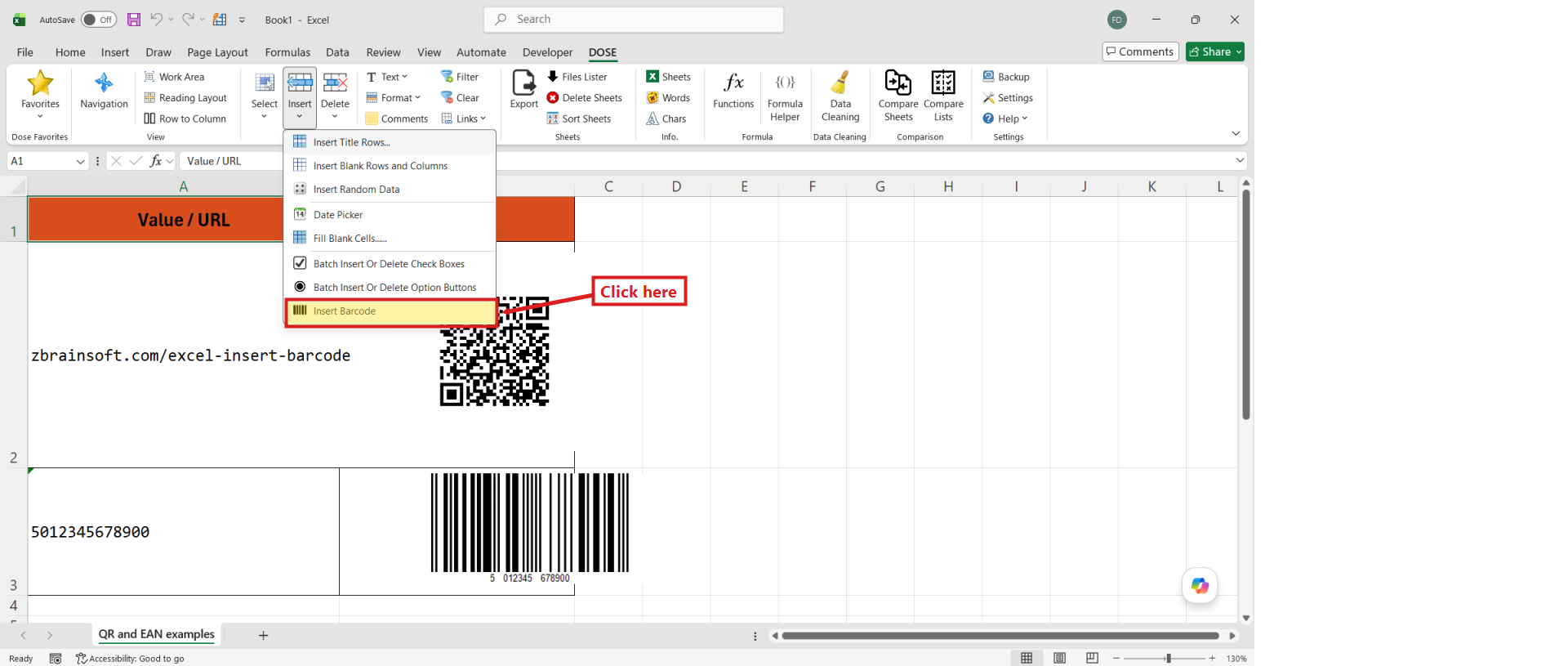
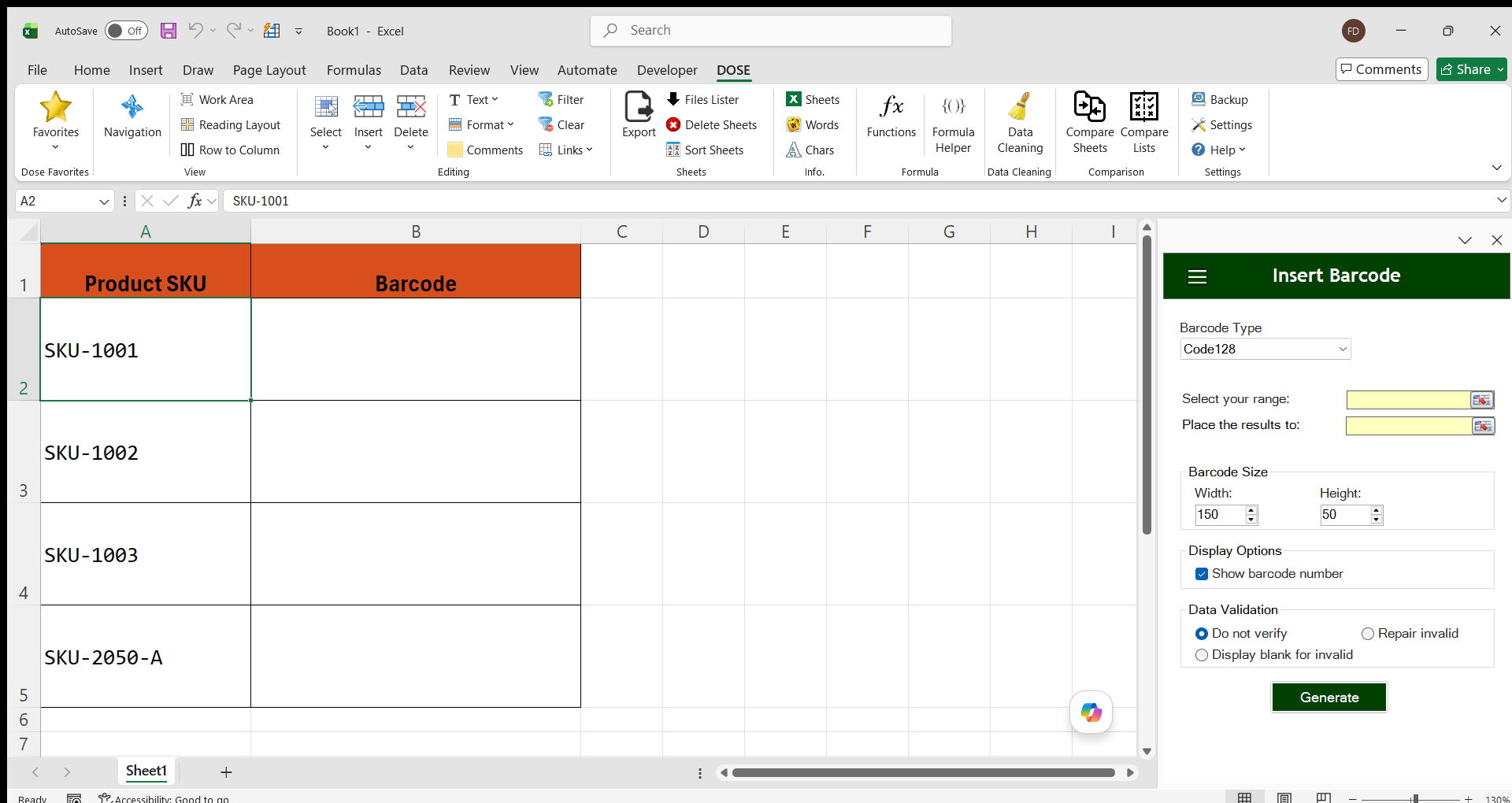
- Open the DOSE tab on the Excel ribbon, click the Insert dropdown in the Editing group, and pick Insert Barcode. The Insert Barcode pane opens on the right.
- Pick your Barcode Type from the dropdown — Code128, QR Code, EAN-13, EAN-8, UPC-A, or UPC-E.
- Click the small selector button next to Select your range and highlight the cells that contain your source values.
- Click the selector button next to Place the results to and pick where the barcode images should land — either a single top-left cell (Dose expands the range automatically to match the source) or an equally-sized range.
- (Optional) Adjust Width and Height in the Barcode Size group, tick or untick Show barcode number under Display Options, and pick a Data Validation mode.
- Click Generate. The progress indicator shows live percentage; press ESC any time to stop.
Bulk Barcodes — a Whole Column of SKUs in One Click
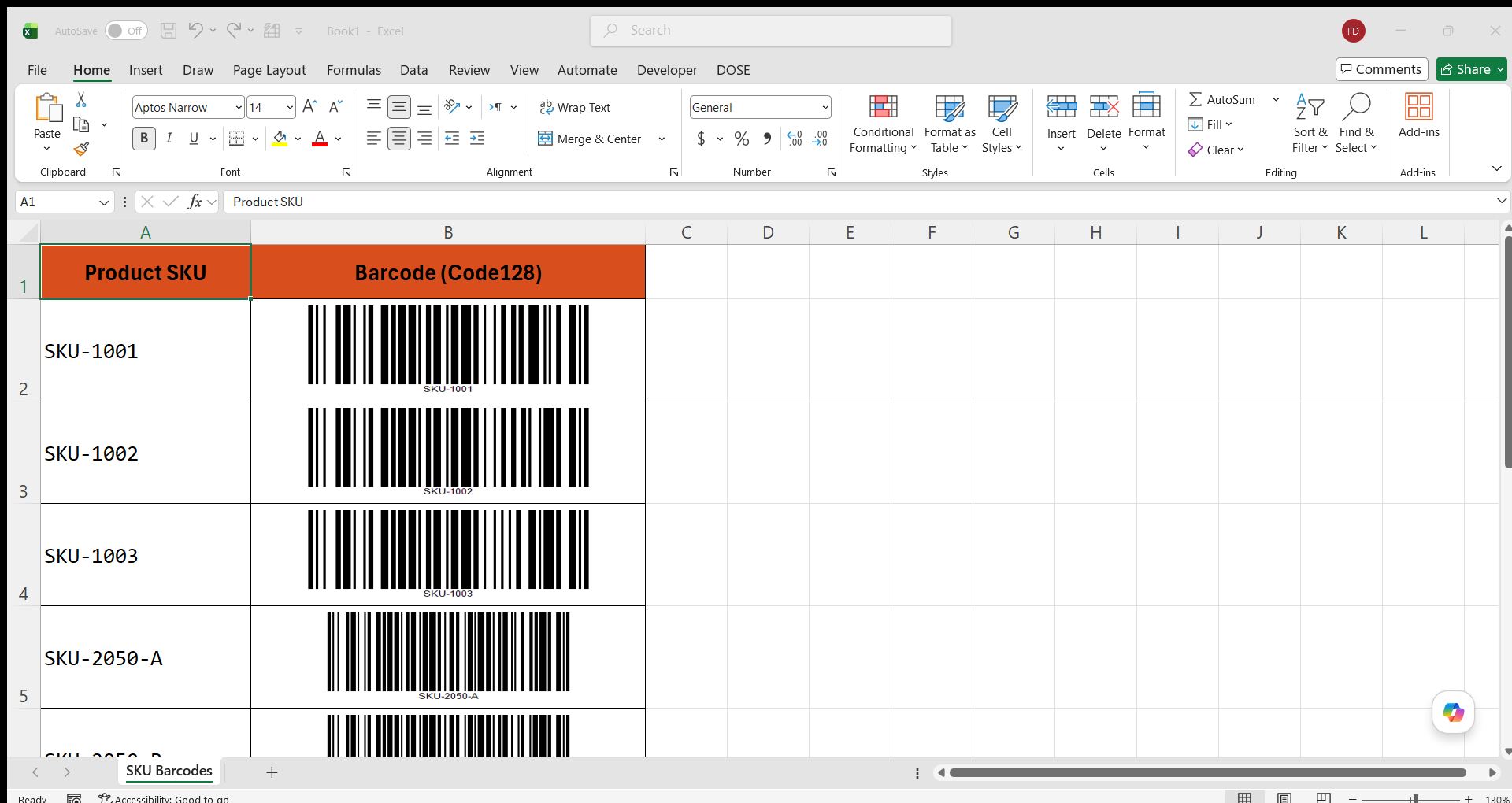
This is the mode that changes the workflow. Instead of generating one barcode at a time, you point Dose at an entire column of source values — hundreds or thousands of SKUs, order numbers, part codes, or URLs — and a single click writes a fully-scannable barcode image next to each one.
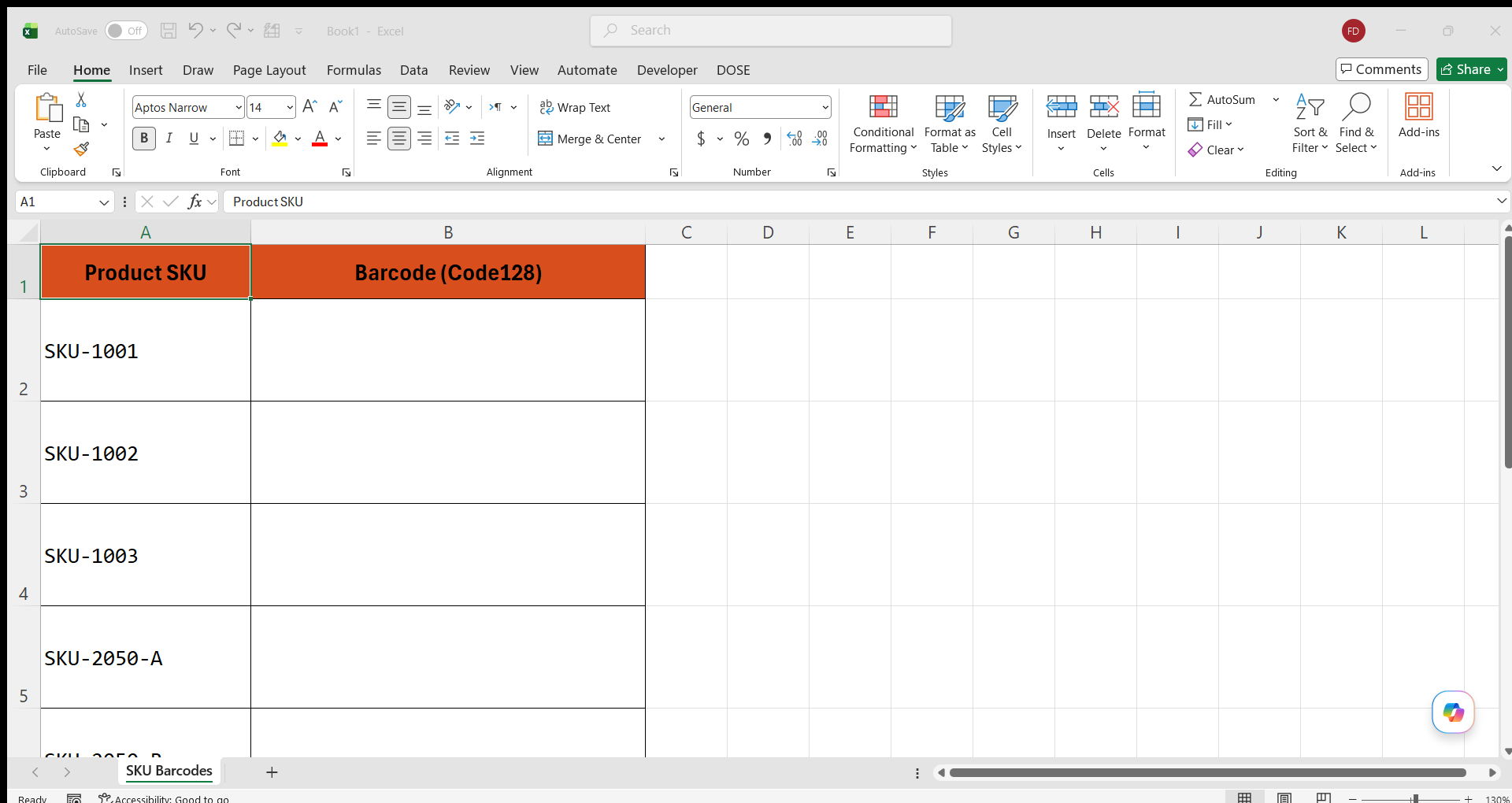
In the example below we typed a short list of product SKUs into column A, opened the Insert Barcode pane, picked Code128, set the Source Range to column A and the Destination Range to column B, then clicked Generate. Each source value was converted into a scannable Code128 image and dropped into its matching row in column B — row heights and column widths auto-adjusted so every barcode fits its cell cleanly.

The Six Supported Barcode Types
Different scanners and different industries expect different barcode symbologies. Dose supports the six most widely used ones for retail, logistics, warehousing and general document workflows — pick whichever your downstream system reads.
Code128 — the universal all-purpose barcode
Best for: internal SKUs, order numbers, tracking IDs, shipping labels, warehouse tags — anywhere you need a compact linear barcode that can encode any character (letters, digits, symbols). Code128 is the default choice inside Dose because it accepts almost any input string, produces a short high-density barcode, and is read by virtually every modern scanner.
QR Code — 2D matrix for URLs, vCards, and long text
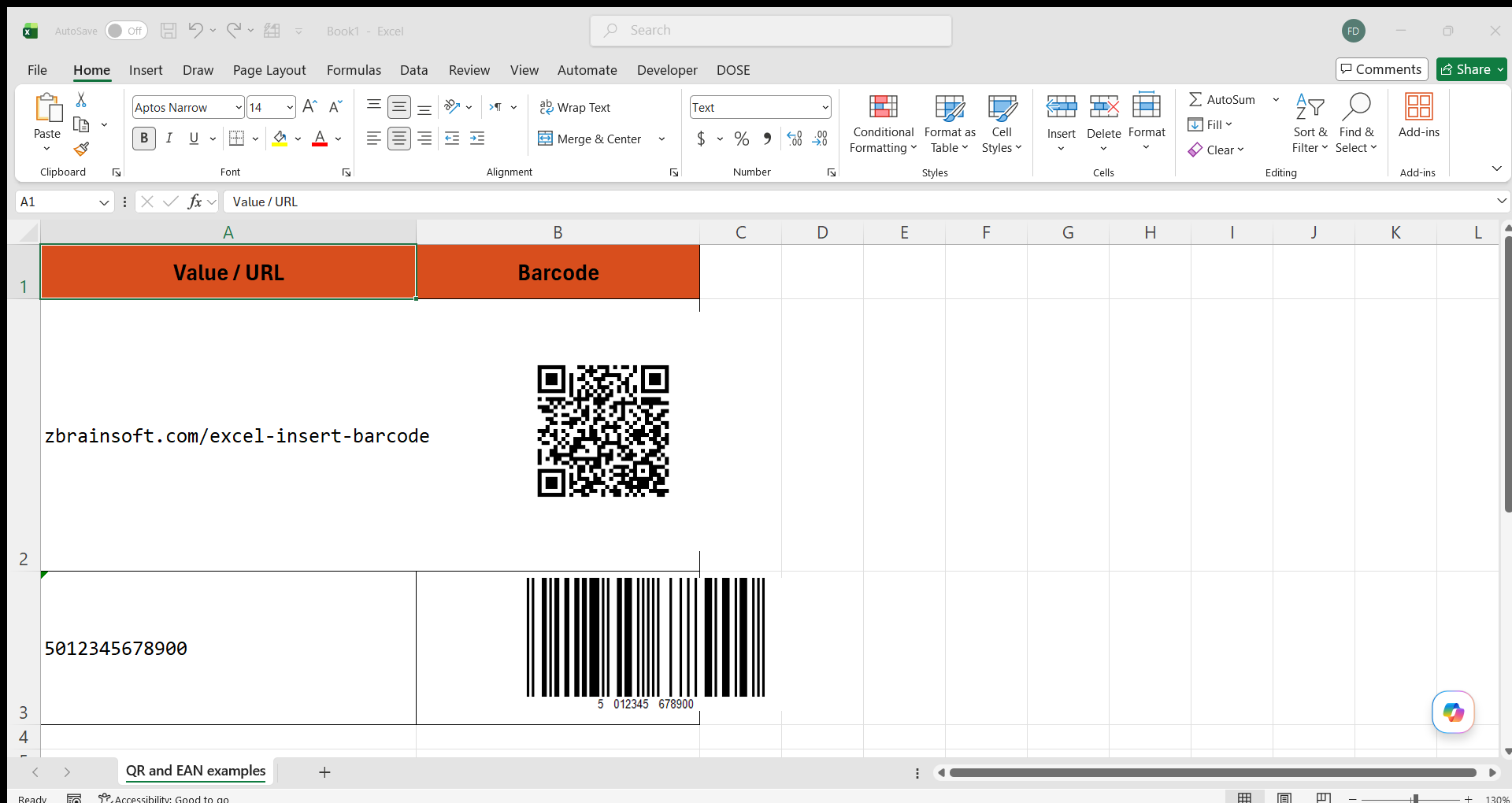
Best for: URLs, contact cards, Wi-Fi credentials, product landing pages, event tickets, menu links — anything that a phone camera should be able to scan and open directly. Dose generates QR codes with UTF-8 character set and Medium (M) error correction, so codes stay scannable even when the printed label picks up smudges or scratches. Cell dimensions auto-square themselves so the QR code renders cleanly.
EAN-13 — global retail product code
Best for: retail products sold outside North America. EAN-13 encodes exactly 13 digits (the last digit is a check digit). Supply 12 digits and Dose calculates and appends the correct check digit automatically. Supply 13 and Dose uses them as-is. Non-numeric characters in the source cell are stripped first, so a value like EAN 501234567890 becomes 501234567890 before check-digit calculation.
EAN-8 — compact retail code for small packages
Best for: small retail items where a full EAN-13 won’t physically fit — chewing gum packs, cosmetics samples, small stationery. EAN-8 encodes exactly 8 digits (7 payload + 1 check digit). Supply 7 digits and Dose calculates the check digit for you; supply 8 and Dose uses them as-is.
UPC-A — standard North American retail
Best for: products sold at retail in the United States and Canada. UPC-A encodes exactly 12 digits (11 payload + 1 check digit). Supply 11 digits and Dose calculates the check digit; supply 12 and Dose uses them as-is. Non-numeric characters are stripped from the source before validation.
UPC-E — compressed 8-digit UPC for tiny packages
Best for: small items that need a scannable retail code but don’t have room for a full UPC-A barcode — single-serve confectionery, cosmetics, small hardware. UPC-E encodes 6, 7 or 8 digits. Dose expands the 6-digit payload to a full UPC-A internally, calculates the correct check digit, and prints the compressed 8-digit UPC-E barcode.
Data Validation Modes — What Happens When Input Doesn’t Fit
Retail symbologies (EAN and UPC) require a specific number of digits and reject non-numeric characters. The Data Validation group in the pane lets you decide what happens when a source cell doesn’t match those rules:
- Do not verify (default) — pass the source value through untouched. If it doesn’t meet the symbology’s rules, the barcode engine will refuse to encode and the destination cell shows a short red error message next to the source value. Use this when you’re confident your source column is already clean.
- Repair invalid — auto-pad or truncate the source value to fit the chosen symbology, then generate the barcode. A 10-digit input for UPC-A gets left-padded with a zero to reach 11 digits; a 15-digit input for EAN-13 gets truncated to 12 before the check digit is appended. Use this when your source column has minor length inconsistencies you want fixed automatically.
- Display blank for invalid — skip the cell entirely. The destination cell stays empty when the source value can’t legally be encoded, so your output range only contains valid barcodes. Use this when you want a clean output range that you can visually scan for gaps.
Size, Text & Remember My Settings
Barcode Size: the pane’s Barcode Size group holds two numeric fields for Width and Height, in pixels. Defaults are 150 × 50, which produces a compact linear barcode that fits comfortably inside a standard label. Raise both values for a larger, higher-resolution barcode when you’re printing on A4 label sheets; lower them for a dense inline sheet. QR Codes ignore the width/height split — they auto-square to the larger of the two dimensions.
Show barcode number: tick this checkbox under Display Options to print the barcode value as small readable text below each generated image — useful when the barcode itself is small or when a human needs to type the value in as a backup. Untick it for a clean image-only look, ideal for QR codes or when the barcode value would clutter the sheet.
Remember My Settings: open the small slide-out menu at the top-left corner of the pane and pick Remember My Settings — Dose stores your barcode type, width, height, show-barcode-number and validation choices so the next time you open the pane it opens exactly where you left off. Reset to defaults is right beside it if you want a clean slate.
Real-World Use Cases
- Product labels & SKU tags — convert a column of SKUs into Code128 barcodes for warehouse shelf labels, inventory tags, or product stickers.
- Retail packaging — generate EAN-13, EAN-8, UPC-A or UPC-E barcodes for finished goods, with automatic check-digit calculation from your master product list.
- Order & invoice IDs — drop a Code128 next to every order number on a packing slip or dispatch note so the receiving warehouse can scan-in each order in seconds.
- Asset tags — generate QR codes for laptops, tools, or fixed-asset registers so a phone camera opens each item’s record page instantly.
- Event tickets & badges — QR codes on attendee lists that check them in at the door with a scanner or phone.
- Coupon & voucher runs — batch-generate unique Code128 or QR codes for a promotional voucher list, ready to mail-merge into a printed campaign.
- Landing-page QR codes — a column of destination URLs converted to QR codes for print collateral, restaurant menus, or trade-show handouts.
- Serial number encoding — convert manufacturing serial numbers into Code128 barcodes so QA teams can scan finished units into a tracking system.
Demo: Create Barcodes in Excel in Action
Frequently Asked Questions
Which barcode types can I create in Excel with Dose?
Six symbologies: Code128 (universal alphanumeric), QR Code (2D matrix, up to thousands of characters), EAN-13 and EAN-8 (European retail), and UPC-A and UPC-E (North American retail). Together they cover almost every business use case — internal SKUs, retail packaging, shipping labels, asset tags, QR-code URLs, and coupon runs.
Do I need to install a barcode font to make this work?
No. Dose generates real barcode images (PNGs) embedded inside your workbook — not font characters. The barcode looks and scans the same on any machine, any Excel version, any operating system that opens the file. No fonts to install, no distribution headaches.
Can I generate barcodes for a whole column of SKUs in one click?
Yes — that’s the whole point of the tool. Point Source Range at your column of source values, point Destination Range at where the barcode images should land (a single top-left cell is enough — Dose auto-expands to match), pick your barcode type, and click Generate. Hundreds or thousands of barcodes appear in seconds, one per source row.
Are the generated barcodes actually scannable?
Yes. Dose uses the ZXing barcode engine — the same open-source library many commercial scanners and mobile barcode-reader apps use internally — to produce real, standards-compliant barcode images. Print them straight from Excel or copy the images out for use in labels, packing slips, coupons, or product tags — every warehouse scanner and phone camera reads them.
Do I have to type the check digit for EAN or UPC codes myself?
No. Supply 12 digits for EAN-13, 7 for EAN-8, or 11 for UPC-A, and Dose calculates and appends the correct check digit for you. Supply the full length and Dose uses your value as-is. Non-numeric characters are stripped from the source before the check digit is calculated, so EAN 501234567890 becomes 501234567890 then 5012345678900 in the barcode.
What happens if a source value doesn’t fit the selected barcode type?
You choose. In the Data Validation group, pick Do not verify to pass the value through as-is (invalid values show a short red error message in the destination cell); Repair invalid to auto-pad or truncate the value to fit; or Display blank for invalid to skip the row entirely so the destination stays clean.
Can I control the size of each barcode image?
Yes. The Barcode Size group in the pane has Width and Height fields in pixels (default 150 × 50). Raise both for a larger, higher-resolution barcode — useful when you’re printing on label sheets — or lower both for a dense inline layout. QR Codes auto-square themselves to the larger of the two dimensions so they always render as a proper square matrix.
Which Excel versions are supported?
Dose for Excel works on Excel 2010, 2013, 2016, 2019, 2021, 2024 and Microsoft 365 — both 32-bit and 64-bit editions — on Windows. The interface is available in multiple languages.