
Color alternate row or column in Excel

With this utility you can quickly apply shading to alternate row or column for a range cells in a worksheet from using Conditional Formatting and standard formatting to improve the readability of your worksheet in Excel, and you don’t need to know to use the Conditional Formatting and standard formatting. Dose for Excel‘s Alternate Row / Column Shading utility quickly shade every other rows or columns in the selected range of cells.
- Shade or color every other row
- Shade or color every other column
- Remove all conditional formatting shading and background color
Click DOSE » Format » Alternate Row / Column Shading
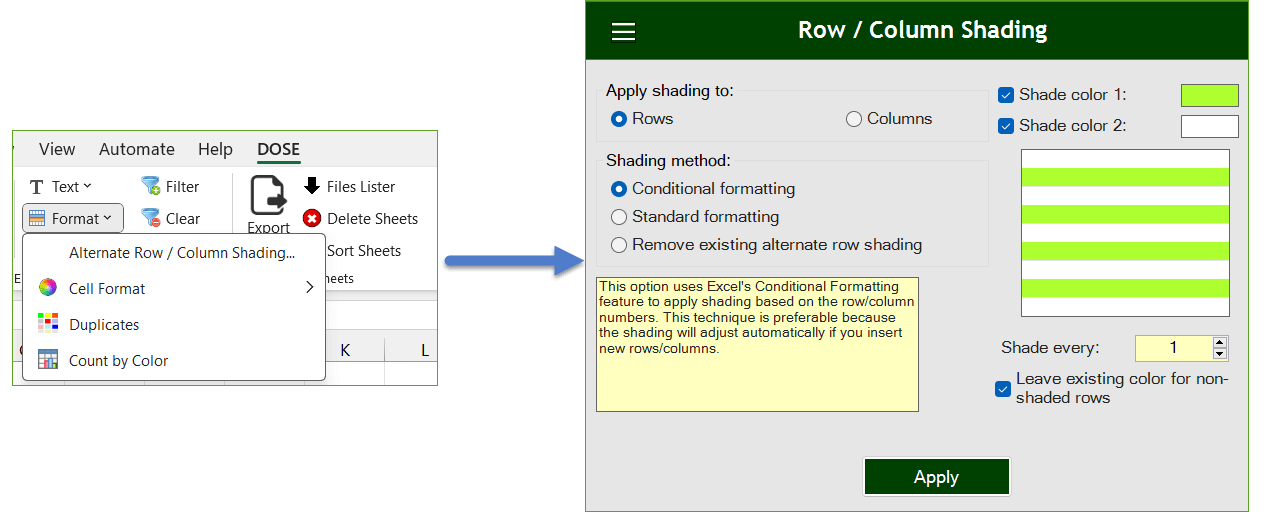
Shade or color every other row
- Example: shade every 1 row in a selected range.
- Select range that you want to shade every nth row.
- Check Rows option in Apply shading to box, then check Conditional formatting option.
- Pick colors to shade every row in selected range, a colors template is shown in the pane to help you view your changes before implementing.
- Specify the nth row number to shade in Shade every box, and keep the Leave existing color for non-shaded rows option checked if you want.
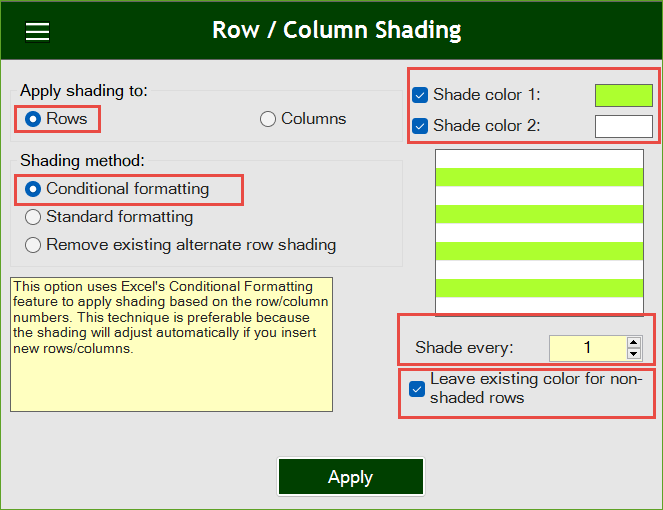
Then click Apply. In below example, you will see how rows are shaded according to your parameters. See the result as shown in the below screenshot.

Shade or color every other column
- Example: shade every 1 column in a selected range.
- Select range that you want to shade every nth column.
- Check Columns option in Apply shading to box, then check Conditional formatting option.
- Pick colors to shade every column in selected range, a colors template is shown in the pane to help you view your changes before implementing.
- Specify the nth column number to shade in Shade every box, and keep the Leave existing color for non-shaded columns option checked if you want.
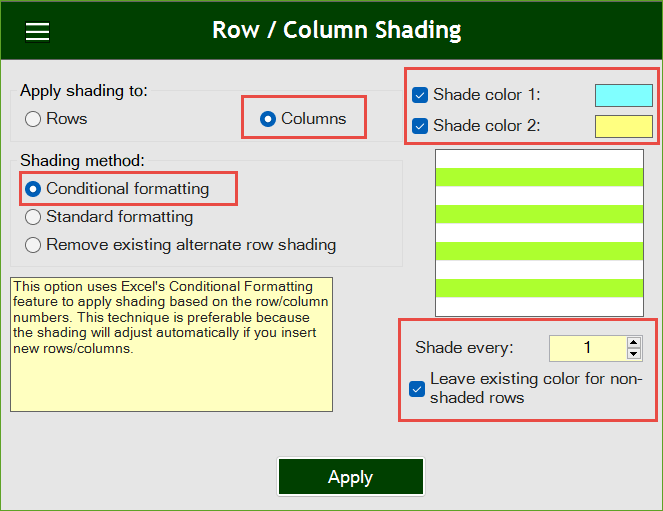
Then click Apply. In below example, you will see how columns are shaded according to your parameters. See the result as shown in the below screenshot.

Remove all conditional formatting shading and background color
- Example: remove conditional formatting shading and background color from selected range in Excel.
- Select range that you want to remove shading from.
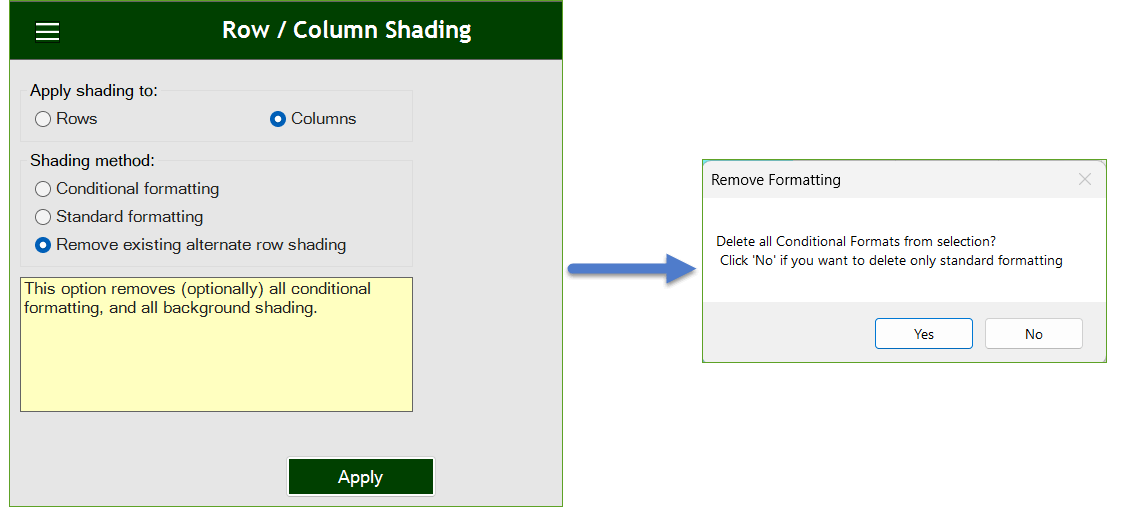
- Check Remove existing alternate row shading option.
- Then click Apply. See the below screenshot.
Demo
More Features:
Excel Backup Settings
Auto Backup Excel Workbooks Save time by auto backup your Excel files automatically once the…
Excel Remove By Position
Remove characters by position from text in Excel If you ever want to remove a…
Excel Remove All Macros
Remove All Macros From Excel Workbooks Delete Macros, User Forms, VBA modules, etc. from Excel…
Excel Random Generator
Generate Random Data (Numbers, Date, String, etc…) Sometimes you want to generate some random data…
Excel Hyperlinks Sheet Names
Convert All Your Worksheets into Hyperlinks in One Worksheet Extract all sheets names as hyperlinks…
Reverse Text in Excel: Flip Words & Characters Without Formulas
Excel, a powerhouse for data manipulation, often presents unique challenges when dealing with text. One…