
Excel Highlight Or Delete Any Type Of Rows

Highlight or delete items that are identical, empty, hidden, or have a certain value. or at least one row of empty cells The Color / Delete Rows function in Dose for Excel can help you save time and effort while working with large worksheets.
- Click DOSE » Delete » Color / Delete Rows
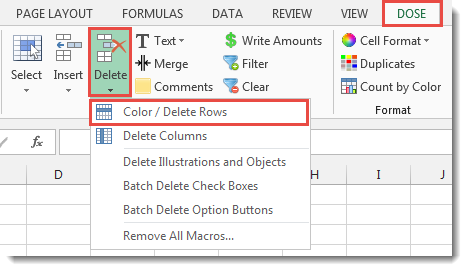

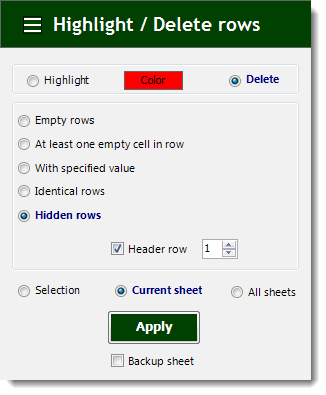
- Color Or Delete Empty Rows
- Check the option for “Empty rows” after selecting a range of cells.
- If you just wish to color the empty rows, select Highlight; otherwise, select Delete.
- Then press the Apply button. The result will be as seen in the screenshot below.
- The range can be chosen from three options: selected range, current sheet, or all sheets.
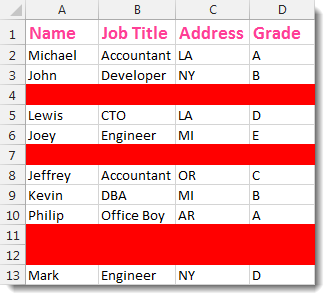
- At least one empty cell in row
- In the row option, select a range of cells and check “At least one empty cell”.
- If you only want to color the results, select Highlight; otherwise, select Delete.
- Then press the Apply button. The result will be as seen in the screenshot below.
- The range can be chosen from three options: selected range, current sheet, or all sheets.
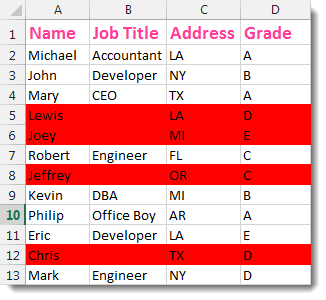
- With specified value
- Select a range of cells, check “With Specified Value”, then type a value in the text box.
- If you only want to color the results, select Highlight; otherwise, select Delete.
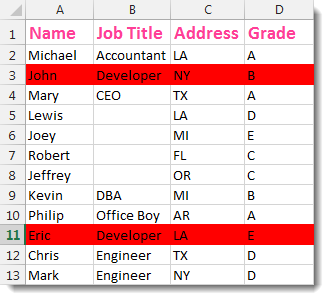
- Then click Apply, and all rows with the value you specified will be erased or colored according to your preference. The result will be as seen in the screenshot below.
- The range can be chosen from three options: selected range, current sheet, or all sheets.
- We used the value “Developer” in the example below.
- Identical rows
- Check the “Identical rows” option after selecting a range of cells.
- If you only want to color the results, select Highlight; otherwise, select Delete.
- Then, depending on your preference, all rows that are identical or duplicate will be eliminated or colored. The result will be as seen in the screenshot below.
- There are three possibilities for selecting the range: current sheet, all sheets, or all sheets.
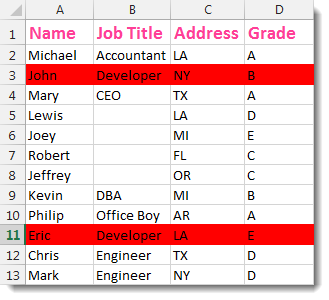
- Check the “Hidden rows” option after selecting a range of cells.
- If you only want to color the results, select Highlight; otherwise, select Delete.
- Then, depending on your preference, click Apply to have all concealed rows erased or colored. The result will be as seen in the screenshot below.
- The range can be chosen from three options: selected range, current sheet, or all sheets.
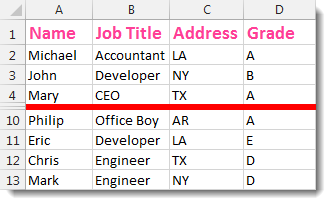
- We hide rows 5 to 9 in the example below.
- Demo
More Features:
Excel Count Words
Count Words in Excel — Cell, Range, Column or Whole Sheet in One Click Excel…
Excel Select Specific Cells
Select Specific Cells In Excel Sheet If you ever want to select some specific cells…
Reverse Text in Excel: Flip Words & Characters Without Formulas
Excel, a powerhouse for data manipulation, often presents unique challenges when dealing with text. One…
Excel Sort Sheets
Sort Sheets by alphanumeric or date In Excel Sort your sheets in your current workbook…
Excel Advanced Functions
Use Built-In Advanced Functions In Excel You can quickly use built-in functions without writing VBA…
Excel Remove Spaces
Remove Leading, Trailing, Extra & All Spaces in Excel – In One Click Stray spaces…